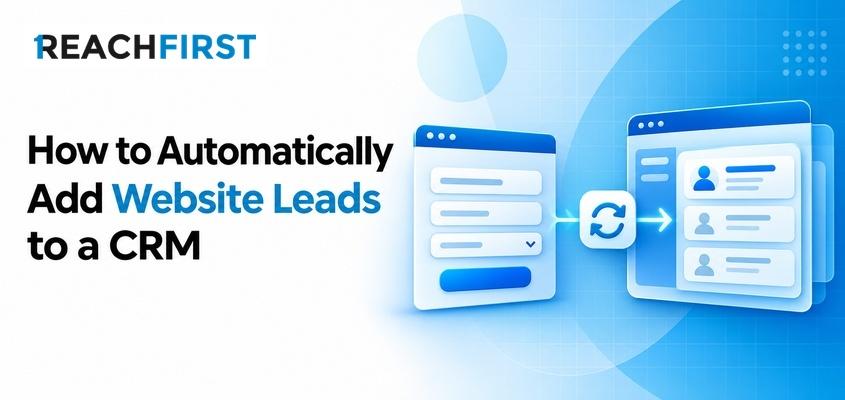
Every website enquiry is a potential customer, but collecting leads is only the first step. When contact forms send information to an inbox instead of a central system, sales teams can miss opportunities, duplicate work, or delay follow-ups. At Reach First, we help businesses address these challenges through AI automation services that connect marketing activities with everyday operations. By automatically adding website leads to a customer relationship management (CRM) system, businesses can organize enquiries, assign follow-ups, and keep customer information accessible.
In this guide, we explain how website-to-CRM automation works, which integration methods to consider, and how to create a reliable lead management process.
Why Should Businesses Automatically Add Website Leads to a CRM?

A website may attract visitors through organic search, paid advertising, or direct traffic. However, generating enquiries does not guarantee that those visitors will become customers.
When businesses rely on manual data entry, staff must open each enquiry, copy the contact details, create a CRM record, and notify the appropriate salesperson. This process takes time and becomes harder to manage as enquiry volumes grow.
CRM automation removes much of this repetitive work by transferring information directly from the website into an organized customer database.
How Automated CRM Lead Capture Improves Sales Workflows
A properly configured integration can help businesses:
- Capture leads promptly: Create CRM records as soon as eligible website forms are submitted.
- Reduce manual entry: Transfer contact information without repeatedly copying details.
- Improve lead organization: Keep enquiries, sources, and contact histories in one system.
- Assign responsibility: Route new leads to the appropriate team member.
- Support faster responses: Trigger notifications and follow-up tasks.
- Measure marketing performance: Connect website enquiries with sales outcomes.
For Canadian businesses managing enquiries across several services or locations, these improvements make it easier to maintain a consistent customer experience.
The goal is not simply to collect more contact information. It is to make each genuine enquiry easier to identify, manage, and respond to.
How Does Website-to-CRM Automation Work?

Website-to-CRM automation connects a lead capture point, such as a contact form, with a CRM platform through an integration.
When someone submits an enquiry, the system captures the relevant details, checks the information, and sends it to the CRM.
A basic workflow follows this sequence:
- A visitor completes a website contact form.
- The website validates the submitted information.
- An integration transfers the details to the CRM.
- The CRM checks for an existing contact record.
- A new record is created, or an existing record is updated.
- The system assigns the lead and triggers the appropriate notification.
This process generally takes place without staff manually entering the information.
However, not every business needs an advanced AI system. Simple lead transfers can often use standard automation rules, while AI may help with more complex activities such as classifying enquiries or identifying missing information.
What Website Lead Information Should Enter the CRM?

Before creating an integration, we recommend identifying which details the sales team actually needs.
Common CRM fields include:
- Customer name and email address
- Phone number
- Company name, when relevant
- Requested product or service
- Location or service area
- Customer message
- Submission date and time
- Lead source or campaign details
- Applicable communication preferences and consent records
Avoid collecting unnecessary personal information simply because the CRM provides additional fields.
A clear field structure improves reporting, reduces confusion, and makes future automation easier to maintain.
How to Automatically Add Website Leads to a CRM Step by Step

The most reliable approach begins with the existing website and sales process rather than selecting software without understanding the workflow.
Step 1: Review Your Website Forms and CRM Requirements
Start by listing every place where customers can submit enquiries.
These may include contact pages, service request forms, quote forms, landing pages, and appointment booking forms.
Next, review how the CRM stores contact information.
Check which fields are required, whether the platform supports integrations, and how duplicate contacts are handled.
For example, a Canadian HVAC company might need to record the requested service, city, and preferred appointment date. A B2B company may also require an organization name and business category.
These details determine how the website form should connect with the CRM.
Step 2: Choose the Right CRM Integration Method
Businesses generally have three main options for connecting website forms to their CRM.
Native integrations
Some form builders and CRM platforms provide built-in connections. These are often the simplest option because they require limited technical configuration.
Third-party automation platforms
Tools such as Zapier or Make can connect supported website forms with CRM platforms. They allow businesses to create workflows that transfer records, update fields, and trigger notifications.
Custom API integrations
An application programming interface (API) allows developers to connect systems directly.
This approach may be appropriate when a business requires custom validation, complex routing, or connections between several internal systems.
The right option depends on compatibility, security requirements, maintenance needs, and the complexity of the workflow.
Step 3: Map Website Form Fields to CRM Fields
Field mapping tells the integration where each piece of information should appear.
For example, a field labelled “Your Email” on the website should map to the CRM’s email field.
Likewise, a dropdown labelled “Service Required” may need to connect with a custom CRM property.
Check that field types match and that required CRM fields have valid values.
Incorrect mapping can cause missing information, rejected submissions, or records that appear in the wrong categories.
Step 4: Configure the Automation Trigger
A trigger is the event that starts an automated workflow.
For website lead capture, the trigger is usually a successful form submission.
Once activated, the workflow should transfer the information and perform the required CRM actions.
Our team recommends keeping the initial workflow straightforward:
- Receive the form submission.
- Validate the submitted information.
- Check whether the contact already exists.
- Create or update the CRM record.
- Assign the enquiry to the correct team member.
- Send an internal notification.
Additional features can be introduced after the basic process works reliably.
Step 5: Test the CRM Connection Before Launch
Testing should cover more than a single successful submission.
Use sample enquiries to check whether contact details appear in the correct fields, records are created without unnecessary duplicates, and notifications reach the intended recipients.
Also test missing fields, invalid email addresses, repeated submissions, and temporary connection failures.
If the CRM becomes unavailable, the integration should record the failure and support a controlled retry or alert.
A workflow that works during one test is not necessarily ready for regular business use.
Using AI Automation to Improve CRM Lead Management

Basic automation transfers information between systems. AI automation can extend that process by interpreting enquiry content and helping teams decide what should happen next.
At Reach First, our approach to automation centres on connecting technology with practical business needs rather than introducing tools that add unnecessary complexity.
Automatically Categorize Website Leads With AI
Not all enquiries require the same response.
A roofing company might receive requests for emergency repairs, commercial roof replacements, and general pricing information.
An AI-assisted workflow can analyze submitted messages and suggest categories based on the customer’s stated needs.
For example, a message about an active roof leak may be flagged for urgent human review, while a general quote request enters the standard sales queue.
These categories should be reviewed and refined over time. AI-generated classifications can be inaccurate, particularly when customer messages lack context.
Improve Lead Routing and Follow-Up Tasks
Once a lead enters the CRM, automation can assign it according to predefined business rules.
Assignments might depend on:
- Requested service
- Customer location
- Existing account ownership
- Team availability
- Type of enquiry
The workflow can also create a follow-up task and notify the assigned salesperson.
We recommend using clear assignment rules and keeping human oversight for urgent, sensitive, or unusual enquiries.
AI should support the sales team rather than make every customer decision independently.
Protect Customer Information During CRM Automation

Website forms often collect personal information, including names, telephone numbers, and email addresses.
Automatically transferring those details between platforms creates privacy and security responsibilities.
Canadian businesses should consider applicable federal and provincial privacy requirements before implementing CRM integrations.
The Office of the Privacy Commissioner of Canada’s guidance on meaningful consent explains the importance of informing individuals about the collection, use, and disclosure of their personal information.
Businesses should explain their data practices clearly and obtain appropriate consent where required.
Build Privacy Controls Into the Workflow
We recommend reviewing several practical safeguards:
- Collect only information needed for a defined business purpose.
- Use secure connections between website forms and CRM systems.
- Restrict CRM access according to employee responsibilities.
- Protect integration credentials and API keys.
- Establish appropriate data retention and deletion procedures.
- Record relevant consent preferences accurately.
- Review third-party platform access and data handling arrangements.
Submitting a contact form does not automatically provide unlimited permission to send promotional marketing messages. Depending on the circumstances, an enquiry may create time-limited implied consent under Canada’s Anti-Spam Legislation (CASL), while other messages may require express consent.
Businesses should review the applicable CASL requirements, including consent, identification, and unsubscribe obligations, before sending commercial electronic messages.
Common Website-to-CRM Automation Problems to Avoid

Even well-planned integrations can develop problems when website forms, CRM settings, or business processes change.
Duplicate Leads and Incomplete Records
Duplicate records can arise when the same customer submits several forms or contacts the business using different details.
Configure matching rules, usually beginning with email addresses or another suitable identifier.
Where a possible match is uncertain, flag the record for review instead of automatically merging unrelated contacts.
Incomplete submissions also need attention. Required fields, form validation, and error notifications help protect CRM data quality.
Automation Failures That Go Unnoticed
An integration may stop working after a software update, expired credentials, or a CRM configuration change.
Without monitoring, a business might continue receiving website submissions without seeing them in its sales system.
Our professionals recommend automated failure alerts, secure event logs, and periodic submission testing.
A reliable setup should make failures visible so staff can recover affected enquiries.
Too Many Automated Follow-Ups
Automation makes it easy to send messages, but more communication does not always improve customer relationships.
A visitor requesting a quote may appreciate confirmation that the enquiry was received. Several immediate promotional messages could have the opposite effect.
We recommend keeping automated communications relevant to the customer’s request and respecting their communication preferences.
How to Measure CRM Lead Automation Performance

After implementation, businesses should review whether automation is making lead management more effective.
A successful connection is only one part of the process. Sales teams still need to respond to enquiries and move opportunities forward.
Track Lead Capture and Sales Outcomes
Useful performance indicators include:
- Lead transfer success rate: The percentage of eligible website submissions successfully recorded in the CRM.
- Response time: How long it takes the sales team to make the first meaningful contact.
- Duplicate record rate: How frequently submissions produce unnecessary records.
- Lead qualification rate: The percentage of enquiries that meet the business’s criteria.
- Lead-to-customer conversion rate: The proportion of enquiries that become paying customers.
- Automation error rate: How often integrations fail or require manual intervention.
Reviewing these measures can reveal problems that are not obvious from the CRM dashboard alone.
For example, a growing number of records may appear positive. However, if many are duplicates or spam submissions, the sales team may not be receiving more genuine opportunities.
Refine Your Workflow as Business Needs Change
CRM automation should evolve alongside the business.
New services, expanded territories, additional sales representatives, and changing marketing campaigns can affect how leads should be categorized or assigned.
Schedule periodic reviews of form fields, routing rules, integration performance, and follow-up procedures.
At Reach First, we focus on automation that supports measurable business objectives while keeping the customer experience practical and straightforward.
Conclusion
Automatically adding website leads to a CRM can reduce repetitive data entry, improve enquiry tracking, and help sales teams respond more consistently. The strongest setup connects reliable form capture with accurate customer records, clear lead ownership, appropriate privacy safeguards, and regular monitoring.
At Reach First, we help businesses in Edmonton and across North America explore AI automation solutions that fit their existing workflows and growth plans. Whether your company needs a straightforward website-to-CRM connection or a more advanced lead management process, our team can help assess the right approach. Contact us to discuss how automation could improve the way your business captures and manages website enquiries.